Fix Critical Error in WordPress : Step by Step Troubleshooting
Nothing panics a website owner more than clicking on their site and seeing this abrupt message: “There has been a critical error on your website. Please check your site admin email inbox for instructions.”
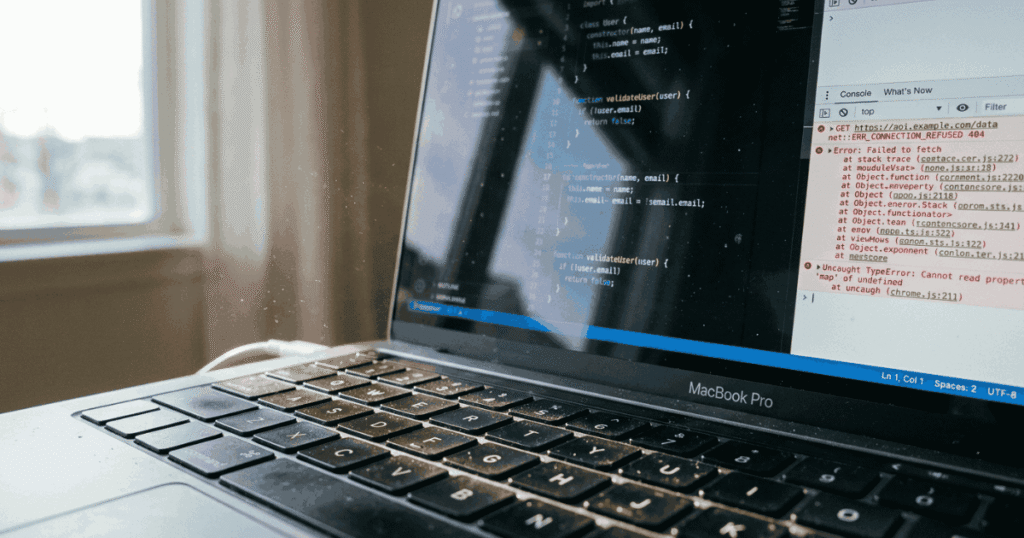
This error – often referred to as the modern WordPress White Screen of Death (WSOD) – stops your website instantly. Visitors cannot access your content, and you might even be locked out of your WordPress admin dashboard (wp-admin).
The good news? Your site files and database are almost certainly safe.
This error usually occurs due to a PHP code conflict, a corrupted plugin update, an incompatible theme, or exhausted PHP memory limits. As a performance first WordPress developer, I handle these issues daily. In this step by step recovery guide, you will learn how to diagnose, fix, and prevent the WordPress critical error safely without losing your data.
What Causes the Critical Error in WordPress?
Since WordPress 5.2, the core software automatically detects when a PHP script crashes and halts execution to prevent security risks or broken rendering.
The primary culprits include:
- Plugin Conflicts: Incompatible plugins, broken updates, or two plugins trying to run conflicting PHP functions.
- Theme Incompatibility: Unhandled PHP errors in functions.php or outdated theme files after a core WordPress update.
- Exhausted PHP Memory Limit: Your server running out of allocated RAM while executing heavy scripts or plugins.
- PHP Version Mismatch: Running outdated plugins on newer PHP versions (like PHP 8.x) or vice versa.
- Corrupted Core Files: Incomplete updates or altered core files caused by server timeouts or malware.
Step 1: Check Your Admin Email (WordPress Recovery Mode)
When a critical error strikes, WordPress attempts to send an automated email to the site administrator.
- Open your inbox associated with the WordPress admin user.
- Look for an email with the subject: “Your Site is Experiencing a Technical Issue”.
- Inside the email, WordPress provides:
- The exact error log: Details showing which plugin or file triggered the fatal error.
- A secret Recovery Mode Link: Clicking this link lets you log in to wp-admin safely with problematic plugins temporarily disabled.
Pro Tip: If you did not receive an email, your server's email delivery (PHP mail()) might be misconfigured. Don't worry proceed directly to Step 2.
Step 2: Enable WP - DEBUG to Reveal the Hidden Error
By default, WordPress hides specific technical details from visitors for security. To see the exact line of code causing the failure, you must enable debug mode via FTP or cPanel File Manager.
How to turn on WP_DEBUG:
- Log in to your hosting account via cPanel File Manager or an FTP Client (FileZilla).
- Navigate to your root directory (usually public_html).
- Locate and open the wp-config.php file.
- Scroll down until you find the line:
PHP
define( 'WP_DEBUG', false );
- Replace it with the following code snippet:
PHP
// Enable WordPress Debugging
define( 'WP_DEBUG', true );
define( 'WP_DEBUG_LOG', true );
define( 'WP_DEBUG_DISPLAY', false );
- Save the file and refresh your broken website page.
How to Read the Error Log:
Instead of showing errors on the live site to visitors, WordPress will now generate a log file at wp-content/debug.log. Open this file to see the exact fatal error:
Plaintext
[17-Oct-2026 14:22:10 UTC] PHP Fatal error: Uncaught Error: Call to undefined function… in /public_html/wp-content/plugins/bad-plugin/bad-plugin.php on line 42
This log tells you exactly which plugin (bad plugin) or theme file is causing the system crash!
Step 3: Deactivate Problematic Plugins via FTP / cPanel
If the debug log points to a specific plugin – or if you cannot access wp-admin – you can disable all plugins directly through your file system.
Plaintext
Root Directory (public_html)
│
└── wp-content/
├── plugins/ ──► Rename to “plugins_old” (Disables all plugins)
└── themes/
Steps to disable plugins manually:
- In File Manager / FTP, open wp-content/.
- Find the plugins folder.
- Rename plugins to plugins_old. This instantly deactivates all plugins on your website.
- Try accessing your website or wp-admin dashboard:
- If the site loads: The issue was definitely caused by a plugin!
- Rename plugins_old back to plugins.
- Go inside wp-content/plugins/ and rename individual plugin folders one by one (e.g., elementor-pro to elementor-pro-disabled) to isolate the exact broken plugin.
Step 4: Switch to a Default WordPress Theme
If plugins are not the culprit, a broken theme file or incompatible functions.php script is likely causing the fatal PHP crash.
- Open File Manager / FTP and navigate to wp-content/themes/.
- Locate your active theme folder (e.g., astra or hello-elementor).
- Rename your active theme folder to something like astra_disabled.
- WordPress will automatically fallback to a default core theme (such as twentytwentyfour).
- Check if your site or dashboard is accessible again.
Step 5: Increase the PHP Memory Limit
A critical error frequently occurs when complex page builders, WooCommerce plugins, or heavy scripts exhaust your server’s assigned PHP memory.
To fix this, raise your memory limit in wp-config.php:
- Open wp-config.php.
- Add this line right before /* That’s all, stop editing! Happy publishing. */:
PHP
define( 'WP_MEMORY_LIMIT', '256M' );
- Save changes.
Alternatively, edit your .htaccess file and add:
Apache
php_value memory_limit 256M
If your hosting provider restricts memory overrides, contact support to raise your PHP memory allocation to 256M or 512M.
Step 6: Upgrade or Downgrade PHP Version
An mismatch between your server’s PHP version and old plugin code will crash your site with a fatal error.
- Log in to cPanel or your host dashboard (Hostinger, Namecheap, SiteGround, etc.).
- Open Select PHP Version or PHP Manager.
- If you recently updated to PHP 8.2 or 8.3, try temporarily rolling back to PHP 8.1 or 8.0 to see if outdated plugin code recovers.
- Update all plugins and themes inside wp-admin, then switch back to the latest secure PHP version.
How to Prevent Critical Errors in the Future
Fixing a down site is stressful. Use these professional practices to keep your site stable, secure, and fast:
- Use a Staging Environment: Never update major plugins, themes, or core files directly on a production website. Test on staging first.
- Maintain Regular Automated Backups: Use server level backups or plugins like UpdraftPlus so you can restore your site in seconds if a deployment fails.
- Keep Plugins & Themes Minimal: Avoid installing unmaintained plugins. Fewer plugins mean fewer code conflicts and faster page loading speeds.
- Monitor Core Web Vitals & Server Logs: Regularly check server error logs and monitor performance metrics to catch warnings before they turn into critical failures.
Still Stuck? Get Expert WordPress Recovery Support
If you followed these steps and your site is still showing a critical error – or if you want a professional developer to audit your site architecture, fix PHP errors, and optimize speed – I can help.
At Botexy, I provide direct developer support to fix site – breaking bugs, resolve Core Web Vitals bottlenecks, and keep WordPress sites running clean and fast.
My Core Philosophy
“Building websites isn’t just about good design it’s about engineering fast, secure, and user centric digital assets that convert visitors into revenue.”
"A slow website is a broken business strategy."
In today’s digital world, a delay of even 1 second in page load speed can cost you 7% of your conversions. My mission with Botexy is simple: To build digital assets that give your business a competitive edge.
When you work with me, you don’t just get a developer; you get a partner who cares about your site’s growth, uptime, speed, and bottom line.

I’m Rashedul, a Web Developer and founder of Botexy. I analyze AI, web tech and digital security to deliver practical, data driven insights that help you stay secure, informed and ahead in the digital world.