How to Fix Core Web Vitals in WordPress: A Step by Step Guide
Since Google made user experience a core ranking signal, website performance is no longer just a technical metric it is a direct SEO ranking factor. In this year, if your WordPress site fails Google’s Core Web Vitals (CWV) assessment, you aren’t just losing frustrated visitors; you are actively losing search rankings to faster competitors.
Many webmasters install heavy caching plugins, run a quick speed test, and assume their job is done. However, passing Core Web Vitals requires a targeted approach to fix specific rendering bottlenecks, layout shifts, and JavaScript execution delays.
In this step by step master guide, we will break down what Core Web Vitals are, how to measure them accurately, and the exact optimizations needed to achieve a 90+ score on Google Page Speed Insights on WordPress.
Understanding the Core Web Vitals Metrics
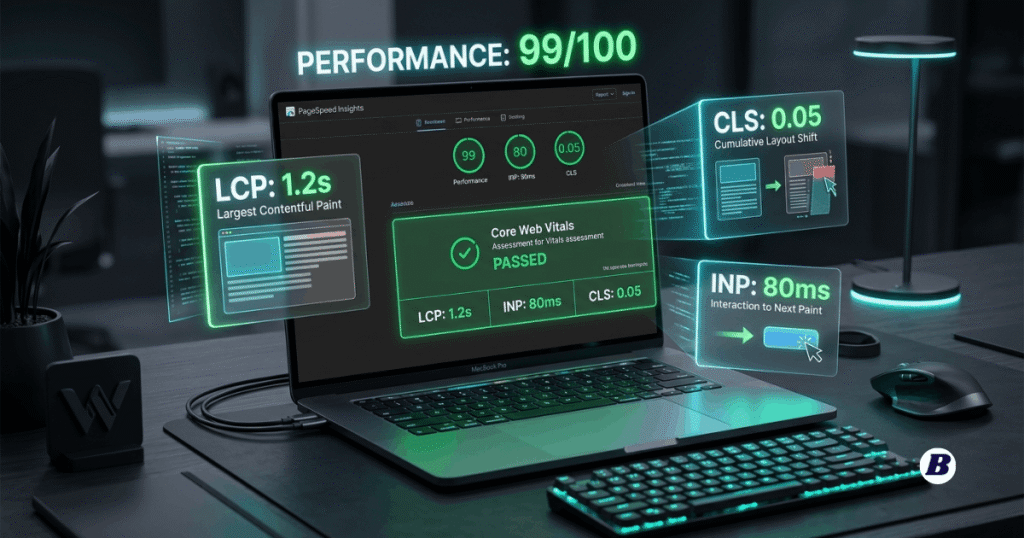
Google evaluates your website’s user experience using three primary metrics:
1. LCP (Largest Contentful Paint) — Loading Speed
- Good Score: 2.5 seconds or faster.
- What it measures: The time it takes for the largest visual element above the fold (usually a hero image, video banner, or main heading) to render on the screen.
2. INP (Interaction to Next Paint) — Responsiveness
- Good Score: 200 milliseconds or less.
- What it measures: Replacing the old FID (First Input Delay) metric, INP measures how quickly your page responds visually when a user clicks a button, opens a mobile menu, or interacts with an element.
3. CLS (Cumulative Layout Shift) — Visual Stability
- Good Score: 0.1 or lower.
- What it measures: Unexpected shifting of web page elements during loading (e.g., when a banner image suddenly pops in and pushes readable text down while a user is trying to click).
Step 1: Accurately Measuring Your Current CWV Scores
Before tweaking settings in your dashboard, gather real-world performance data:
- Google PageSpeed Insights (PSI): Provides both field data (real-user metrics from Google Chrome users over 28 days) and lab data (simulated synthetic tests).
- Google Search Console (Core Web Vitals Report): Shows site-wide URL performance flagged directly by Google’s indexing bots.
- GTmetrix: Excellent for visualizing page waterfall charts to pinpoint slow-loading scripts or heavy images.
Step 2: How to Fix LCP (Largest Contentful Paint)
LCP issues are almost always caused by slow server response times, unoptimized hero images, or render blocking CSS/JavaScript.
A. Optimize the Hero Image
If your LCP element is a high resolution hero image:
- Convert to WebP or AVIF: Compress images into modern formats using plugins like ShortPixel or Imagify.
- Preload the LCP Image: Tell the browser to prioritize fetching your hero image immediately by inserting a preload tag into your <head> HTML:
<link rel=”preload” as=”image” href=”https://yourwebsite.com/hero-image.webp” fetchpriority=”high”> - Disable Lazy Loading Above the Fold: Do NOT lazy load your hero image or main logo. Lazy loading intentionally delays rendering, which directly ruins your LCP score.
B. Upgrade to High Performance Hosting
If your server response time (TTFB – Time to First Byte) is above 600ms, caching plugins alone won’t save you.
Read our full comparison on Managed WordPress vs Cloud Hosting to select a server environment built for high speed.
Step 3: How to Fix INP (Interaction to Next Paint)
INP measures input latency. High INP is almost always caused by heavy JavaScript execution blocking the main browser thread.
A. Delay Non Essential JavaScript
Defer or delay execution of scripts that aren’t immediately needed (such as Google Analytics, chat widgets, or Facebook Pixels) until user interaction occurs.
- In plugins like WP Rocket or FlyingPress, enable “Delay JavaScript Execution”.
B. Remove Unused Plugins & Scripts
Each active plugin injects its own CSS and JS assets into your site headers. Audit your active plugins and replace bloated extensions with lightweight lightweight alternatives (e.g., using clean native code instead of massive page builders for simple forms).
Step 4: How to Fix CLS (Cumulative Layout Shift)
Layout shifts destroy mobile user experience and lead to high bounce rates.
A. Always Set Explicit Image Dimensions
Unsized images are the #1 cause of CLS. Always define width and height attributes in your HTML image tags so the browser reserves the exact layout space before the image downloads:
<img src=”banner.webp” width=”1200″ height=”600″ alt=”Core Web Vitals Banner”>
B. Reserve Space for Ads & Embeds
If you run display ads (e.g., Google AdSense or Mediavine) or embed YouTube videos, enclose them in CSS wrapper boxes with fixed aspect ratios so surrounding content doesn’t jump when the ad loads.
C. Optimize Custom Web Fonts
Custom Google Fonts cause layout shifts if the fallback font swaps awkwardly when the custom font finishes downloading. Fix this by adding font display: swap; or preloading key font files locally on your server.
Recommended Speed Optimization Tech Stack for this year
To automate these technical steps on WordPress, consider this high performing optimization plugin combination:
| Plugin Category | Top Pick | Primary Function |
| All in One Performance | WP Rocket / FlyingPress | Caching, script delaying, CSS minification |
| Image Compression | ShortPixel | Automatic AVIF/WebP conversion |
| Asset Clean Up | Asset CleanUp / Perfmatters | Disabling unnecessary scripts on specific pages |
| Global Content Delivery | Cloudflare (Enterprise/Pro) | Edge caching and automatic image optimization |
Step by Step Summary Checklist
- Test baseline metrics using Google PageSpeed Insights.
- Preload your main hero visual and disable lazy loading above the fold.
- Minify and delay non essential JavaScript to keep the browser main thread free for fast clicks.
- Define explicit width and height dimensions on every image and video container.
- Set up edge caching using a top-tier CDN like Cloudflare to serve static content closer to global users.
Frequently Asked Questions (FAQ)
1. What is a good Core Web Vitals score on mobile?
Google assesses mobile performance strictly. A passing score requires an LCP under 2.5 seconds, an INP under 200ms, and a CLS below 0.1 on simulated mobile throttled 4G connections.
2. Why does my score drop after installing page builders like Elementor?
Visual page builders often output deep HTML DOM trees and load heavy CSS/JS bundles site-wide, regardless of whether a page uses those elements. You can counter this by using asset unloading plugins like Perfmatters to disable unused builder scripts on specific pages.
3. How long does it take for Google to reflect improved CWV scores?
While lab tests in PageSpeed Insights update instantly, official field data in Google Search Console takes 28 days to collect updated user experience data and clear historical warnings.
The Botexy Verdict
Passing Core Web Vitals in 2026 isn’t about trial and error; it’s about systematic asset management. By optimizing your critical rendering path, eliminating layout shifts, and delaying heavy scripts, you can achieve a lightning fast WordPress site that ranks higher on Google and delivers a seamless user experience.

I’m Rashedul, a Web Developer and founder of Botexy. I analyze AI, web tech and digital security to deliver practical, data driven insights that help you stay secure, informed and ahead in the digital world.